Sunday, 7 January 2018

Simple Ways to Prevent Security Breaches in SharePoint Server 2013

SharePoint server is one of the common applications in every organization. It’s used to share information and is accessed by all the teams in the organization helping people to share documents, calendars and much more – saving time on communication. Most of the Fortune 500 companies use SharePoint, because it can be integrated with Active Directory and Microsoft Office thus establishing a collaboration platform. It plays a major role in the organization, but keep in mind that it also contains sensitive data such as legal information. Hence, it is important to secure a SharePoint server from various breaches and threats.
1. Updated Operating System: Always keep an Operating System updated with the latest service packs, patches and hotfixes. This will help you keep tabs on the loop holes in the OS. All the security patches are not required on SharePoint servers. These patches must be tested on lab machines before applying in the production systems. This is required to make sure that they don’t make any negative impact.
2. SharePoint Aware Antivirus: SharePoint servers MUST be installed with antivirus software. Antivirus installed on the SharePoint servers should be a SharePoint aware antivirus. This helps SharePoint scan the files and documents being uploaded and downloaded from its servers.
3. Claims-Based Authentication: Use claim based authentication instead of traditionally integrated Windows authentication. It is based on a user obtaining security token which is digitally signed by a commonly trusted provider. It contains a set of claims. Trust is established between SharePoint and identity provider. If a client tries to access the web application, SharePoint redirects the client to a trusted identity provider. This authenticates the client and provides the token. Then the client sends the token to SharePoint, and SharePoint validates and authenticates it, and finally authorizes the user access.
4. Enable Auditing: It helps track users to determine what actions have been taken on SharePoint. Compliance requirements must be followed, especially when it comes to business critical information. It can pull out the history of actions taken by a particular user or a report for a specified date range.
5. Records Management: SharePoint 2013 archives and retains in-place records using security records management. Records management helps protect an edited / deleted form, delete a document when retention is expired, etc. In addition to the archived record and in-place record retention, SharePoint 2013 offers retention policy to SharePoint sites and Exchange 2013 mailboxes associated with the sites.
6. Avoid Anonymous Access: Make sure “limited-access user permission lockdown mode” is activated. This helps to prevent anonymous users from accessing application pages.
7. Managed Service Accounts: SQL, Setup and Farm service accounts should be domain accounts with no domain admin or special admin permissions. Also, configure e-mail accounts for all the managed users.
8. Securing Ports, Protocol and Service: Secure SharePoint server, application server and database server by locking down the unnecessary ports, protocols and services.
9. Planned Permission Model: Never provide permissions at the level of items like calendar, tasks, etc. Managing and changing permissions will be difficult and can lead to performance issues. Always provide permissions through Active Directory group membership, and provide only necessary permissions. Give full control only when necessary. It can create and delete sites, create and delete SharePoint groups, manage site and library permissions, activate and deactivate SharePoint features, create and modify workflows, etc.
10. Planning: SharePoint 2013 deployment and permissions need proper planning. Define the permission model, it provides the right permissions to the right user and also helps manage SharePoint better with no performance impact. Make sure only users with appropriate permissions manage SharePoint site, and not everyone in the team.
Hope these simple steps will help you maintain security of your SharePoint server and protect it from numerous security threats

Tuesday, 26 December 2017

What is Microsoft Azure ?

Azure is a cloud computing platform and infrastructure created by Microsoft for building, deploying and managing applications and services through a global network of Microsoft-managed data centers.

Monday, 20 November 2017

Send mail using ajax calls

function SendEmailToBO(UsersToSendMail) {
   
    var urlTemplate = _spPageContextInfo.webAbsoluteUrl + "/_api/SP.Utilities.Utility.SendEmail",
    subject,
    body,
    fromEmail = 'abc@gmail.com';
    subject = "Project Created Successfully"
    body = "Hello,<br/><br/>Thank you for completing the Project Creation process.<br/><br/>The project created successfully .<br/> Project Name : "+ projectName  +" <br/> Project# : "+ no +" <br/>No further action is required on your part. For any queries/concerns, please contact Admin <br/><br/>Thank You<br/> Team.";


    $.ajax({
        contentType: "application/json; charset=utf-8",
        url: urlTemplate,
        type: "POST",
        dataType: "json",
        data: JSON.stringify({
            'properties': {
                '__metadata': { 'type': 'SP.Utilities.EmailProperties' },
                'From': fromEmail,
'To': { 'results': UsersToSendMail },
                'Body': body,
                'Subject': subject
            }
        }),
        headers: {
            "Accept": "application/json;odata=verbose",
            "content-type": "application/json;odata=verbose",
            "X-RequestDigest": $("#__REQUESTDIGEST").val()
        },
        success: function (data) {
         
                 
    },
        error: function (err) {          
            alert("Error @ SendEmail : " + err.responseText);
        }
    });
 
}

Monday, 7 August 2017

Uploading Documents and Setting Metadata Using SharePoint REST (One Version)

Uploading Documents and Setting Metadata Using SharePoint REST (One Version)

Technorati Tags: ,,
There are many examples of uploading documents using SharePoint 2013 REST/CSOM/JSOM and there are many issues. One issue is uploading documents into SharePoint Online with CSOM/JSOM. There is a 1.5mb limit. I work for a SharePoint ECM company and we have many customers that have documents much larger than 1.5mb. One way around this limitation is to use the SharePoint REST API which is limited  to 2gb. Just remember that REST requires you to post a byte array, and does not support reading from a stream. This can put a strain on memory resources.
Another issue is customers have versioning turned on and will complain that your solution creates two versions when uploading documents and setting metadata. This has always been a challenge when using SharePoint’s remote API. You can still use RPC which enables you to post the binary and the metadata in one call and only create one version. However, this can only be used from native apps and is limited to 50mb. You can upload and create only one version with CSOM/JSOM/REST by checking out the file before setting the metadata and then checking the file back in afterwards using the SPCheckinType.OverwriteCheckin. This works. However, if you try to check the file in and any field level validation fails, the check in fails. JavaScript code below.
1
2
3
4
5
6
7
8
9
10
11
12
13
14
15
16
17
18
19
20
21
22
23
24
25
26
27
28
29
30
31
32
33
34
35
36
37
38
39
40
41
42
43
44
45
46
47
48
49
50
51
52
53
54
55
56
57
58
59
60
61
62
63
64
65
66
67
68
69
70
71
72
73
74
75
76
77
78
79
80
81
82
83
84
85
86
87
88
89
90
91
92
93
94
95
96
97
98
99
100
101
102
103
104
105
106
107
108
109
110
111
112
113
114
115
116
117
118
119
120
121
122
123
124
125
126
127
128
129
130
131
132
133
134
135
136
137
138
139
140
141
142
143
144
145
146
147
148
149
150
151
152
153
154
155
156
157
158
159
160
161
162
163
function addFile() {  
 
    getFileBuffer().done(function (result) {
        upload(result.filename,result.content).done(function (data) {
            var file = data.d;
            checkOut(file.ServerRelativeUrl).done(function () {
                updateMetadata(file.ServerRelativeUrl, null).done(function () {
                    checkIn(file.ServerRelativeUrl).done(function () { });
                })
            })
             
        })
    }).fail(function (err) {
        var e = err;
    });
}
 
function getFileBuffer() {
    var file = $('#documentUpload')[0].files[0];
    var fileName = file.name;
    var dfd = $.Deferred();
    var reader = new FileReader();
 
    reader.onloadend = function (e) {
        var result = { 'filename': fileName, 'content': e.target.result };
        dfd.resolve(result);
    }
    reader.onerror = function (e) {
        dfd.reject(e.target.error);
    }
 
    reader.readAsArrayBuffer(file);
    return dfd;
}
 
function upload(filename, content) {
    appweburl = decodeURIComponent(getQueryStringParameter('SPAppWebUrl'));
    hostweburl = decodeURIComponent(getQueryStringParameter('SPHostUrl'));
    var restSource = appweburl +
        "/_api/SP.AppContextSite(@target)/web/lists/getbytitle('Documents')/rootfolder/files/add(url='" + filename + "',overwrite=true)?@target='" + hostweburl + "'";
    var dfd = $.Deferred();
 
    $.ajax(
       {
           'url': restSource,
           'method': 'POST',
           'data': content,
           processData: false,
           'headers': {
               'accept': 'application/json;odata=verbose',
               'X-RequestDigest': $('#__REQUESTDIGEST').val(),
               "content-length": content.byteLength
           },
           'success': function (data) {
               var d = data;
               dfd.resolve(d);
           },
           'error': function (err) {
               dfd.reject(err);
           }
       }
      );
 
    return dfd;
}
function checkOut(fileUrl) {
    appweburl = decodeURIComponent(getQueryStringParameter('SPAppWebUrl'));
    hostweburl = decodeURIComponent(getQueryStringParameter('SPHostUrl'));
    var restSource = appweburl +
        "/_api/SP.AppContextSite(@target)/web/lists/getbytitle('Documents')/rootfolder/files/getbyurl(url='" + fileUrl + "')/checkout?@target='" + hostweburl + "'";
    var dfd = $.Deferred();
    $.ajax(
    {
        'url': restSource,
        'method': 'POST',
        'headers': {
            'accept': 'application/json;odata=verbose',
            'content-type': 'application/json;odata=verbose',
            'X-RequestDigest': $('#__REQUESTDIGEST').val()
        },
        'success': function (data) {
            var d = data;
            dfd.resolve(data.d);
        },
        'error': function (err) {
            dfd.reject(err);
        }
    }
   );
 
    return dfd;
 
}
function updateMetadata(fileUrl) {
 
    appweburl = decodeURIComponent(getQueryStringParameter('SPAppWebUrl'));
    hostweburl = decodeURIComponent(getQueryStringParameter('SPHostUrl'));
    var restSource = appweburl +
        "/_api/SP.AppContextSite(@target)/web/lists/getbytitle('Documents')/rootfolder/files/getbyurl(url='" + fileUrl + "')/listitemallfields?@target='" + hostweburl + "'";
    var dfd = $.Deferred();
 
    $.ajax(
    {
        'url': restSource,
        'method': 'POST',
        'data': JSON.stringify({
            '__metadata': {'type':'SP.ListItem'},
            'Title': 'My Title 3'
        }),
        'headers': {
            'accept': 'application/json;odata=verbose',
            'content-type': 'application/json;odata=verbose',
            'X-RequestDigest': $('#__REQUESTDIGEST').val(),
            'X-Http-Method': 'PATCH',
            "If-Match": "*"
        },
        'success': function (data) {
            var d = data;
            dfd.resolve();
        },
        'error': function (err) {
            dfd.reject();
        }
    }
   );
 
    return dfd;
 
}
function checkIn(fileUrl) {
    appweburl = decodeURIComponent(getQueryStringParameter('SPAppWebUrl'));
    hostweburl = decodeURIComponent(getQueryStringParameter('SPHostUrl'));
    var restSource = appweburl +
        "/_api/SP.AppContextSite(@target)/web/lists/getbytitle('Documents')/rootfolder/files/getbyurl(url='" + fileUrl + "')/checkin?@target='" + hostweburl + "'";
    var dfd = $.Deferred();
 
    $.ajax(
    {
        'url': restSource,
        'method': 'POST',
        data: JSON.stringify({
            'checkInType': 2,
            'comment': 'whatever'
        }),
        'headers': {
            'accept': 'application/json;odata=verbose',
            'content-type': 'application/json;odata=verbose',
            'X-RequestDigest': $('#__REQUESTDIGEST').val()
        },
        'success': function (data) {
            var d = data;
            dfd.resolve(data.d);
        },
        'error': function (err) {
            dfd.reject(err);
        }
    }
   );
 
    return dfd;
 
}

Use the ValidateUpdateListItem Method


If your going to be setting or updating metadata using the SharePoint’s remote API, then I suggest you use the SP.ListItem’s new ValidateUpdateListItem method. This method is available only through the remote API and is new to SP2013. ValidateUpdateListItem  is very similar to the UpdateOverwriteVersion method available on the server API. ValidateUpdateListItem sets the metdata and if the bNewDocumentUpdate argument is set to true will call the UpdateOverwriteVersion method which will update without incrementing the version. This eliminates the need to make the extra calls to check out and check in the document. It also will check in the document if it is already checked out and use the checkInComment argument.  The method takes multiple SP.ListItemFormUpdateValue types as arguments. This type takes the internal name of the field along with a value.
1
2
3
4
5
6
7
8
9
10
11
12
13
14
15
16
17
18
19
20
21
22
23
24
25
26
27
28
29
30
31
32
33
34
35
36
37
38
39
40
41
42
43
44
45
function updateMetadataNoVersion(fileUrl) {
    appweburl = decodeURIComponent(getQueryStringParameter('SPAppWebUrl'));
    hostweburl = decodeURIComponent(getQueryStringParameter('SPHostUrl'));
    var restSource = appweburl +
        "/_api/SP.AppContextSite(@target)/web/lists/getbytitle('Documents')/rootfolder/files/getbyurl(url='" + fileUrl+ "')/listitemallfields/validateupdatelistitem?@target='" + hostweburl + "'";
 
    var dfd = $.Deferred();
 
    $.ajax(
    {
        'url': restSource,
        'method': 'POST',
        'data': JSON.stringify({
            'formValues': [
                {
                '__metadata': { 'type': 'SP.ListItemFormUpdateValue' },
                'FieldName': 'Title',
                'FieldValue': 'My Title2'
            },
            {
                '__metadata': { 'type': 'SP.ListItemFormUpdateValue' },
                'FieldName': 'testautodate',
                'FieldValue': 'asdfsdfsdf'
            }
            ],
            'bNewDocumentUpdate': true,
            'checkInComment': ''
        }),
        'headers': {
            'accept': 'application/json;odata=verbose',
            'content-type': 'application/json;odata=verbose',
            'X-RequestDigest': $('#__REQUESTDIGEST').val()
        },
        'success': function (data) {
            var d = data;
            dfd.resolve(d);
        },
        'error': function (err) {
            dfd.reject(err);
        }
    }
   );
 
    return dfd;
}

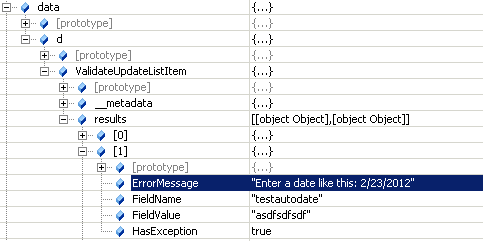
The efficiency of this method is reflected in its return type which is a list of SP.ListItemFormUpdateValue . This type contains the validation response for each field being updated. You can use the ListItemFormUpdateValue.HasException property to check for errors then use the ErrorMessage property to log or inform the user.


I Prefer ValidateUpdateListItem


Below is the revised code of adding a file using the ValidateUpdateListItem method.
1
2
3
4
5
6
7
8
9
10
11
12
13
14
function addFile() {  
 
    getFileBuffer().done(function (result) {
        upload(result.filename,result.content).done(function (data) {
            var file = data.d;
            updateMetadataNoVersion(file.ServerRelativeUrl).done(function () {
                 
            })          
        })
    }).fail(function (err) {
        var e = err;
    });
}

The ValidateUpdateListItem method eliminates extra remote calls and allows you to handle multiple validation errors. Using this method along with REST you can efficiently upload a document up to 2gb and create only one version. You can also use this method to update metadata without having to create new file. Just set the bNewDocumentUpdate argument to true and this will not increment the version.